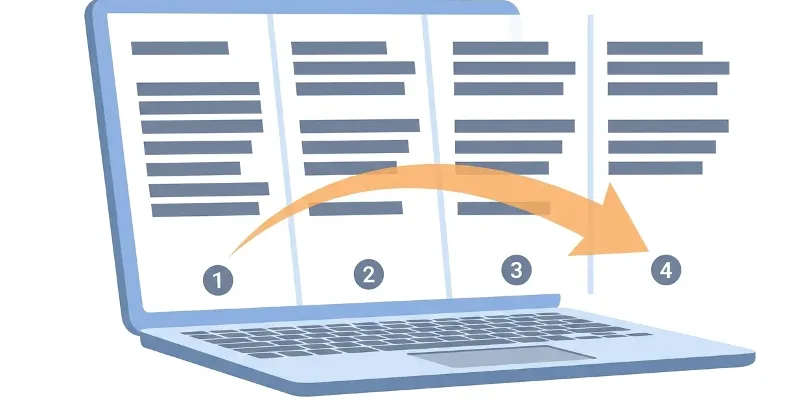
A PDF does not store paragraphs. It stores instructions like "draw this text at x, y, 11 point, Times". Converting to Word means reading thousands of those instructions and inferring which of them make a paragraph, a heading, or a cell in a table.
That is why the same converter can give wildly different results on two files. The good news is that you can predict the result just by looking at your file.
PDF to Word
Drop a PDF here
PDF · up to 100 MB per file
Files are deleted after 2 hours. You can delete them right after downloading.
What converts well, and what falls apart
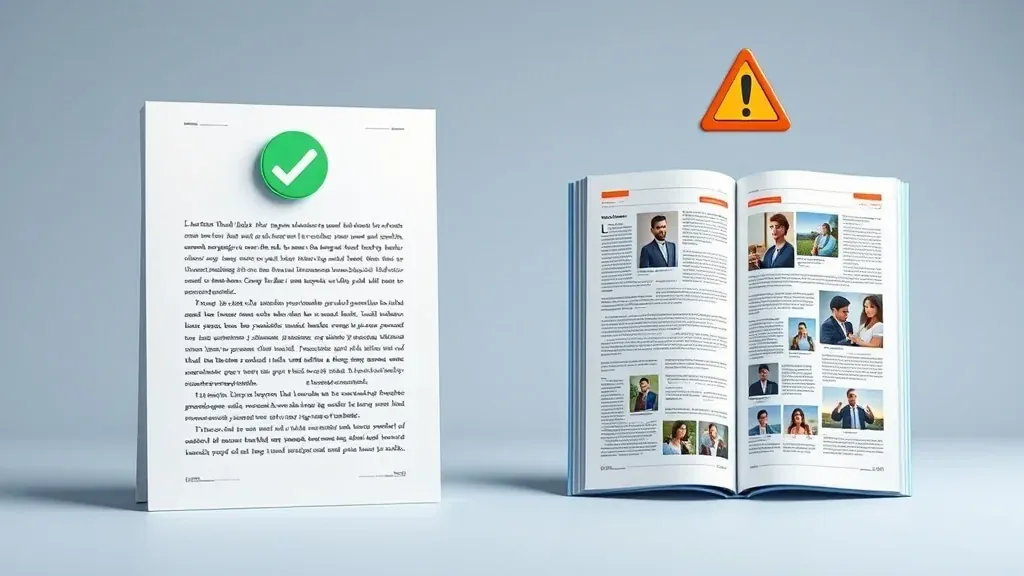
Single-column documents convert well. Multi-column pages with images set into the text tend to break.
| Usually converts well | Usually falls apart |
|---|---|
| PDFs exported straight from Word, Google Docs or LibreOffice | Scans and photos of documents |
| Single-column, text-first documents | Magazines and brochures with images set into the columns |
| Tables with full ruling lines | Tables aligned with whitespace instead of lines |
| Files with embedded fonts | Files whose fonts were never embedded |
If your file sits in the left column, just convert it. If it sits in the right column, expect some clean-up, or follow the steps below.
Scans: run OCR first
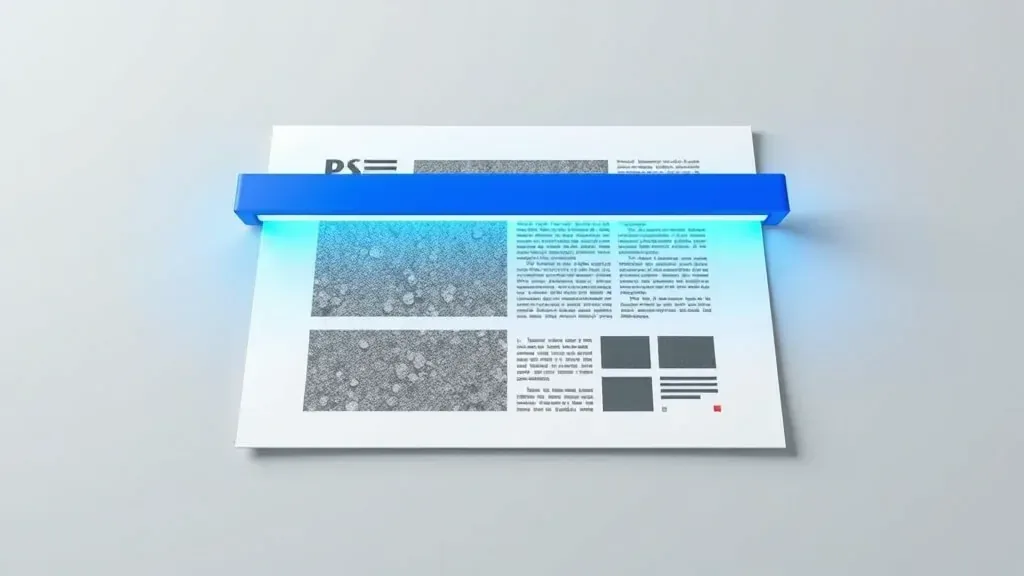
OCR turns pixels into characters. Only then is there text to convert to Word.
A scan is really a photograph of each page, so there is no text to extract. OCR, optical character recognition, reads the image and rebuilds the text so it can be attached to the file.
Steps
Check whether the file has real text
try selecting a line. If you cannot, it is an image.
If it is an image, run OCR PDF first so the characters are recognised and attached to the file.
Convert the recognised file to Word.
In Word, turn on formatting marks to see immediately where a manual line break was used instead of a real paragraph.
OCR guesses characters from pixels, so it is never perfect, least of all with accented text, handwriting and faint scans. Read the numbers and proper names again before you rely on them.
Quick fixes in Word after converting
- Wrong or broken fonts: select all the text and switch to a common font such as Arial or Times New Roman.
- Every line is its own paragraph: use find and replace to join the lines back into paragraphs.
- Images jumping around: set them to sit in line with the text, and the layout settles down.
Need a format other than Word? See the quick guide to picking a PDF target format.
Frequently asked questions
Every line came out as its own paragraph.
That means the PDF carries no paragraph information, which is common in files exported from layout software. Use find and replace in Word to rejoin them.
Can any tool keep the layout perfectly?
No, and one that promises it is overselling. If layout matters more than editing, keep the PDF and edit it directly.
Is the result .doc or .docx?
`.docx`. Word 2007 and later, Google Docs and LibreOffice all open it.
Are my files kept on the server?
They are deleted after 2 hours, and you can delete them yourself as soon as you have the result.
Try it on your own file
Free, no sign-up. Files are deleted after 2 hours.