Android phones come with built-in volume controls, but sometimes the default settings leave you struggling to hear calls, music, or videos. Whether you're in a noisy environment or your speaker has gotten quieter over time, several straightforward methods can make your Android device louder.
Use Your Physical Volume Buttons
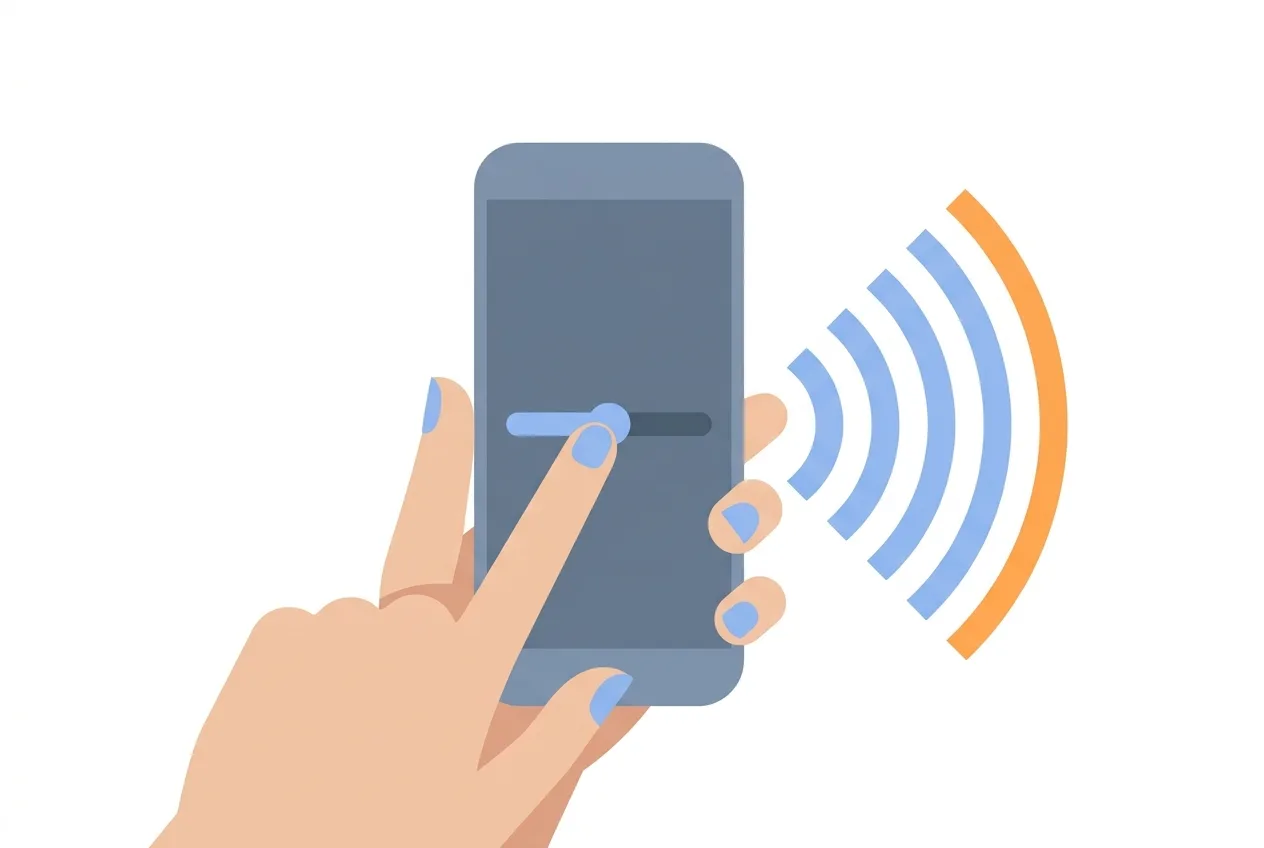
The quickest way to increase volume on Android is the volume rocker on the side of your phone. Press the upper button to raise the volume; you'll see a volume bar appear on screen showing your current level. Push it all the way up to reach maximum volume.
When you're in a call or listening to media, the volume button adjusts that specific audio stream. For example, pressing it during a phone call changes call volume, while pressing it during music playback adjusts media volume. This separation lets you fine-tune different types of sound independently.
Check Your Android Volume Settings
Your phone stores separate volume levels for calls, notifications, media, and alarms. To access these settings:
- Open Settings on your Android device
- Tap Sound or Sound and Vibration (the name varies by manufacturer)
- Look for volume sliders for different categories
- Drag each slider to the right to increase its volume
Some Android phones show a quick volume panel when you press the volume button—tap the gear icon to access full sound settings from there. Make sure you haven't accidentally lowered the media volume while adjusting other settings.
Enable Volume Boost or Audio Enhancement
Many Android devices include built-in audio enhancement features. These options go by different names depending on your phone's manufacturer:
- Samsung phones may have Dolby Atmos or Samsung Audio Booster
- Google Pixel phones offer Adaptive Audio
- Other brands might include Equalizer or Audio Effects
To find these features:
- Go to Settings > Sound
- Look for options like Advanced or Audio Quality
- Enable any boost, equalizer, or enhancement feature available
- Adjust the settings to increase overall loudness
These tools can add 3–6 dB of extra volume, making a noticeable difference without distortion.
Adjust Equalizer Settings
If your Android phone came with an equalizer app, you can use it to boost specific frequencies that make audio seem louder. Most equalizers let you:
- Select presets like "Bass Boost" or "Treble Boost"
- Raise the midrange frequencies, which often make speech and music sound louder
- Manually adjust individual frequency bands
Open your phone's Settings, search for "Equalizer," and enable it if available. Then choose or create a preset that increases perceived loudness without distorting the sound.
Use a Third-Party Volume Booster App
If your phone's built-in options aren't enough, download a volume booster app from Google Play. These apps use software amplification to push volume beyond your phone's standard maximum. When you're using one:
- Open the app and follow its interface to adjust volume levels
- Look for settings labeled "volume amplification" or "boost"
- Be careful not to set it too high, which can cause crackling or distortion
- Close the app when you're done to avoid draining your battery
Note that volume booster apps work best for media playback and calls; they can't bypass hardware limitations if your speaker itself is damaged.
Boost Audio for Videos and Music
When watching videos or listening to music, the app you're using might have its own volume controls. In YouTube, Spotify, or similar apps:
- Look for a volume icon in the app's player controls
- Adjust the slider all the way to the right
- Use the phone's physical volume buttons for additional boost
Some apps also let you enable audio enhancement within their settings—check the app's preferences for equalizer, bass boost, or sound quality options.
If Your Speaker Sounds Damaged or Muffled
If raising the volume doesn't help and the audio still sounds muffled or distorted, your speaker may need attention. Try these troubleshooting steps:
- Restart your phone to reset audio drivers
- Check if a protective case is blocking the speaker
- Gently clean the speaker grille with a soft, dry brush
- Disable any battery saver modes, which sometimes limit audio quality
- Test volume on a different app to see if the problem is app-specific
If the speaker still doesn't sound normal after these steps, you may need professional repair.
Boost Audio Files Before Sharing
If you're working with audio files that are too quiet—like a recording for a school presentation, a podcast, or a message you're sending by email—you can increase their volume before sharing them.
Change volume
Drop an audio file here
MP3, M4A, WAV, OGG, OGA, FLAC… · up to 100 MB per file
Files are deleted after 2 hours. You can delete them right after downloading.
This tool works with audio files up to 100 MB on the free plan, letting you raise the volume level across the entire file, adjust it to a standard loudness, or reduce loud sections that are too intense. Upload your file, choose your volume adjustment, and download the louder version ready to send.
Try it on your own file
Free, no sign-up. Files are deleted after 2 hours.
Frequently asked questions
Why is my Android volume stuck at maximum but still quiet?
Your speaker may be physically damaged, blocked by a case, or the app you're using has its own volume limit. Try a different app, remove any protective case, and test with media like YouTube. If it's still quiet, the speaker hardware may need repair.
Can I set different volumes for different apps on Android?
Android adjusts volume by type (calls, media, notifications) rather than per app. However, some apps have internal volume controls, and third-party apps like "Per App Volume" let you set volume limits for individual apps.
Will a volume booster app damage my speaker?
Volume boosters increase digital volume through software. While they won't cause hardware damage, pushing volume too high can cause crackling or distortion. Start with moderate boosts and listen for quality issues.
How do I prevent my Android volume from resetting?
Android remembers your volume settings between adjustments. If your volume keeps resetting, restart your phone or check if a battery saver mode is interfering with audio settings.
Is there a safe limit to how loud I should set my Android volume?
Long-term exposure to sound above 85 decibels can damage hearing. Keep daily listening at a comfortable level. Use volume boosters only when needed in noisy environments, not as a constant setting.
This guide was drafted with AI assistance and checked against how the Change volume tool works.