Upscale Image
Make a photo twice or four times as large and sharper, in about 7–9 seconds per image.
Drop images here
JPG, JPEG, PNG, WEBP, BMP · up to 100 MB per file · up to 5 files
Files are deleted after 2 hours. You can delete them right after downloading.
How to use Upscale Image in 3 steps
-
Choose your images
Drop up to 5 JPG, PNG, WebP or BMP images on the page, up to 20 MB each.
-
Pick the scale and format
Choose ×2 to double the width and height, or ×4 to make them four times as large. Pick PNG to keep every detail, or JPG or WebP for smaller files.
-
Upscale and download
Press Upscale image and wait a few seconds per image. Drag the comparison slider or press View at 100% to check the details, then download each image or a ZIP.
Guides
A short read first gets you the right result on the first try.
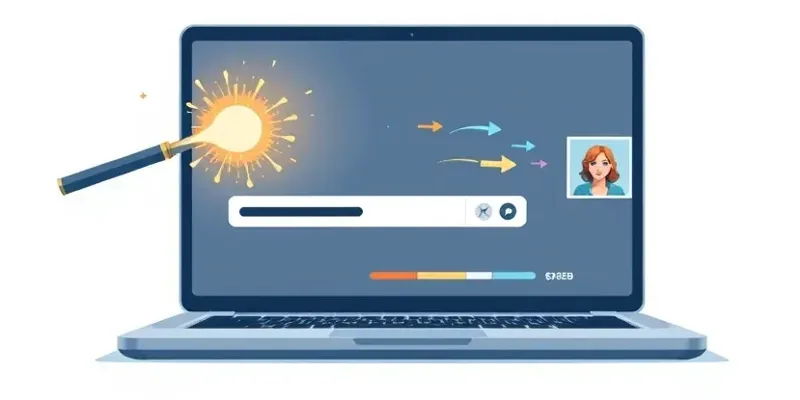
 Upscale Image
 Upscale images with AI: when to pick ×2 or ×4
Plain resizing only makes the existing pixels bigger. AI draws in new detail, so the image grows and stays sharp, as long as you pick the right scale and the right photo.
 AI Art Generator
 AI Art Generator Free: Create Art from a Prompt
Describe the image you want, generate it in seconds, then refine your prompt until the artwork fits your idea.
 Greeting Card Maker
 Diwali wishes: messages and greeting card ideas
Use these Diwali wishes as they are, or personalize them in a simple greeting card you can download as a PNG.
Features
Upscale Image uses AI to make a picture 2 or 4 times as wide and tall and to redraw its details, so small or slightly blurry photos stay sharp in print and on the web. Each image takes about 7 seconds at ×2 and 9 seconds at ×4. Results stay within 4096 px, so images over 2048 px (×2) or 1024 px (×4) are reduced first; you download PNG, JPG or WebP.
- ×2 takes about 7 seconds and ×4 about 9 seconds per image.
- AI redraws edges and details instead of just stretching pixels, so results look less blurry and blocky.
- Up to 5 images per run, downloaded one by one or as a ZIP.
- PNG, JPG or WebP output, up to 4096 px on the long side.
- Before and after slider, plus a View at 100% mode to check fine detail.
- Images are deleted from the server after 2 hours and never used to train AI.
Frequently asked questions
Should I choose ×2 or ×4?
×2 suits most photos you want to print or post in better quality. ×4 is for very small images such as profile pictures or thumbnails. For images already over 1024 px, ×2 keeps more of the original detail because the image is reduced less before upscaling.
Why are large images reduced before upscaling?
So that results stay within 4096 px on the long side. At ×2, images longer than 2048 px are first brought down to 2048 px; at ×4 the limit is 1024 px. For images that are already large, choose ×2.
Can it fix a very blurry photo?
AI sharpens edges and details well on small or slightly blurry images, but it cannot bring back detail that is completely lost, such as smeared text or a face blurred by camera shake. For scratched, creased or black-and-white paper prints, use Restore Old Photo.
Are my images stored?
Your originals and results are deleted from BigQTools servers after 2 hours, and you can delete them right after downloading. BigQTools does not use your images to train AI.