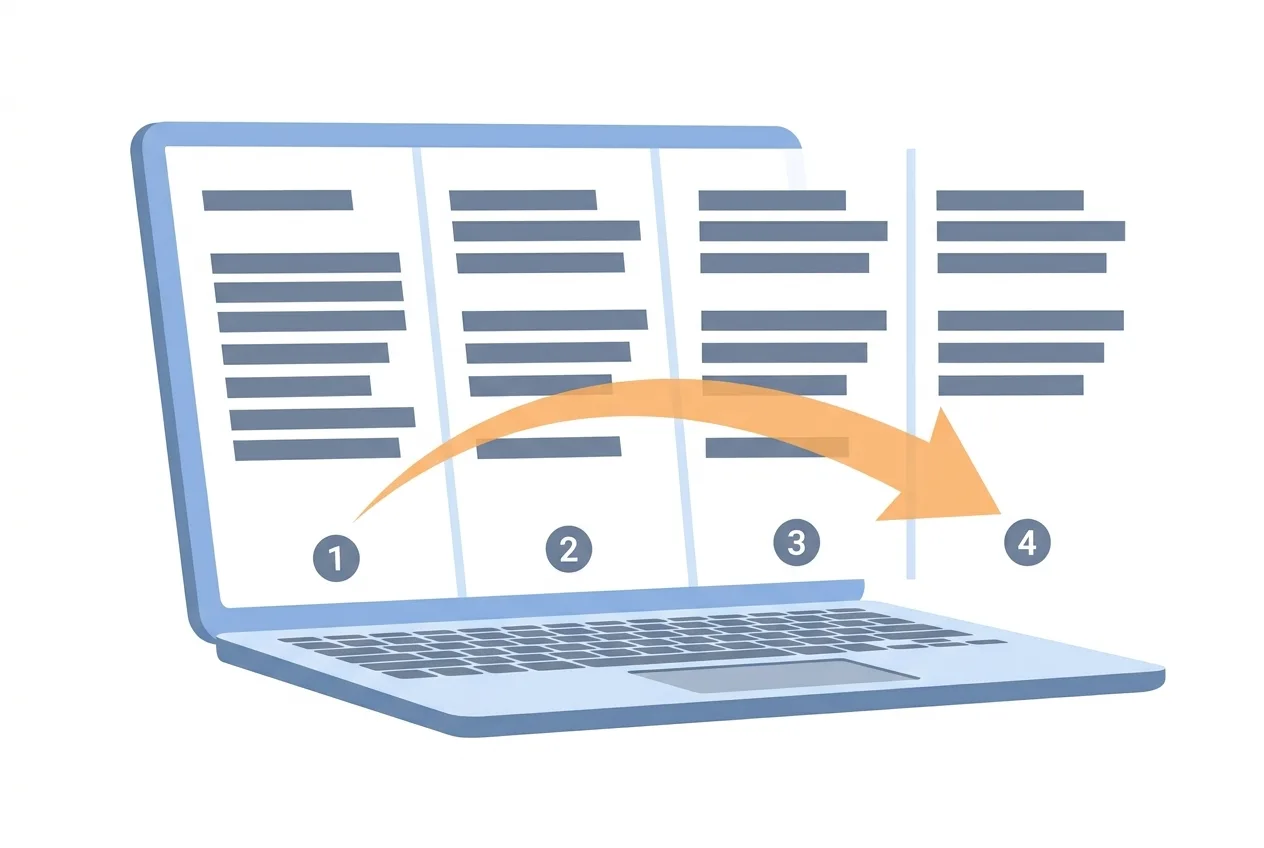
Page numbers turn a stack of pages into a navigable document. Without them, anyone reviewing your report, thesis, or merged PDF has to count pages by hand. This guide covers both paths: using Word's built-in tools for documents you're still editing, and using BigQTools' Add page numbers tool when you already have a PDF.
How to Add Page Numbers in Word
Word handles page numbering through its header and footer system. The numbers update automatically whenever you add or remove pages.
Insert page numbers via the Insert tab
- Open your Word document.
- Click the Insert tab.
- In the Header & Footer group, click Page Number.
- Choose a position: Top of Page (header), Bottom of Page (footer), Page Margins, or Current Position.
- Pick a style from the gallery. Word inserts the numbers throughout your document immediately.
Start numbering from a specific number
If your document is chapter 3 of a longer work that already has chapters 1 and 2, you need to start at the right number rather than 1.
- Click Insert > Page Number > Format Page Numbers.
- Under Page numbering, select Start at and type the number you want.
- Click OK.
Hide the page number on the first page
Title pages and cover pages usually don't carry a visible number, even though Word counts them.
- Double-click the header or footer area to open it.
- On the Header & Footer tab, check Different First Page.
- The page number disappears from page 1 but stays on all subsequent pages.
Change the number format
Academic documents often use Roman numerals (i, ii, iii) for front matter and Arabic numerals (1, 2, 3) for the main body. To switch:
- Double-click the header or footer.
- Right-click the page number field and choose Format Page Numbers.
- Pick the format you need from the Number format list.
- Click OK.
To apply different formats in different parts of the document, insert a section break first, then turn off Link to Previous in each section before setting the format.
How to Add Page Numbers to a PDF with BigQTools
Once a document is exported to PDF, Word's page numbering tools no longer apply. The PDF is a fixed file and needs its own solution. BigQTools' Add page numbers tool handles this without any software to install.
Add page numbers
Drop a PDF here
PDF · up to 100 MB per file
Files are deleted after 2 hours. You can delete them right after downloading.
Steps to number a PDF
- Go to the Add page numbers tool on BigQTools.
- Upload your PDF. The free plan accepts files up to 100 MB; paid plans accept up to 10,240 MB.
- Choose your numbering options: position, format, and starting number.
- Click the button to apply the numbers.
- Download your numbered PDF.
The free plan processes one file per run. If you need to number several PDFs in the same session, a paid plan removes that restriction.
When you need to number a PDF instead of a Word file
- You received a PDF from someone else and need to add numbers before distributing it.
- You merged several Word exports into one PDF and the combined numbering is wrong.
- Your department or publisher requires a PDF with embedded page numbers, not a Word file.
- You no longer have access to the original Word source file.
Try it on your own file
Free, no sign-up. Files are deleted after 2 hours.
Troubleshooting Page Numbers in Word
Numbers aren't showing up: Make sure you're editing inside the header or footer area, not the main body. Click Insert > Header or Footer to open it. Under the Design tab, confirm the header or footer isn't set to blank.
Numbers reset or skip: This usually means section breaks are in play. Double-click the header or footer, then check whether Link to Previous is on or off. For continuous numbering, every section after the first should have Link to Previous turned on.
Numbers are in the wrong position: Delete the number in the header or footer and reinsert it via Insert > Page Number, choosing the correct position this time.
The first page still shows a number: Confirm you've checked Different First Page while the header or footer is open, not from the main document view.
File Size and Plan Limits for PDF Numbering
If you're adding page numbers to a PDF on BigQTools, keep these limits in mind before you upload:
- Free plan: up to 100 MB per file, one file per run
- Paid plans: up to 10,240 MB per file
Most single reports and theses fall well under 100 MB, so the free plan covers the majority of everyday tasks. Large merged documents or high-resolution PDFs may need a paid plan.
Frequently asked questions
Can I add page numbers to only some pages of my Word document?
Yes. Insert section breaks to divide your document, then open the header or footer in each section and toggle **Link to Previous** off where you don't want numbers. This lets each section have its own numbering behavior independently.
What's the difference between adding page numbers in the header versus the footer?
It's purely a style choice. Footers are more common in business and academic documents. Some style guides like APA specify the header for running heads with page numbers; check whichever guide applies to your document.
Do page numbers in Word update automatically?
Yes. Word's page number field updates whenever you add or remove pages. This only applies as long as the numbers were inserted via **Insert** > **Page Number**, not typed manually.
Can I format page numbers differently in different parts of my document?
Yes, using section breaks. Insert a section break where the format should change, open the header or footer in the new section, turn off **Link to Previous**, and then apply a different number format or starting number.
How do I add page numbers to a PDF I've already created?
Use BigQTools' Add page numbers tool. Upload your PDF (up to 100 MB on the free plan), set your position and format, and download the numbered file. No software installation is needed.