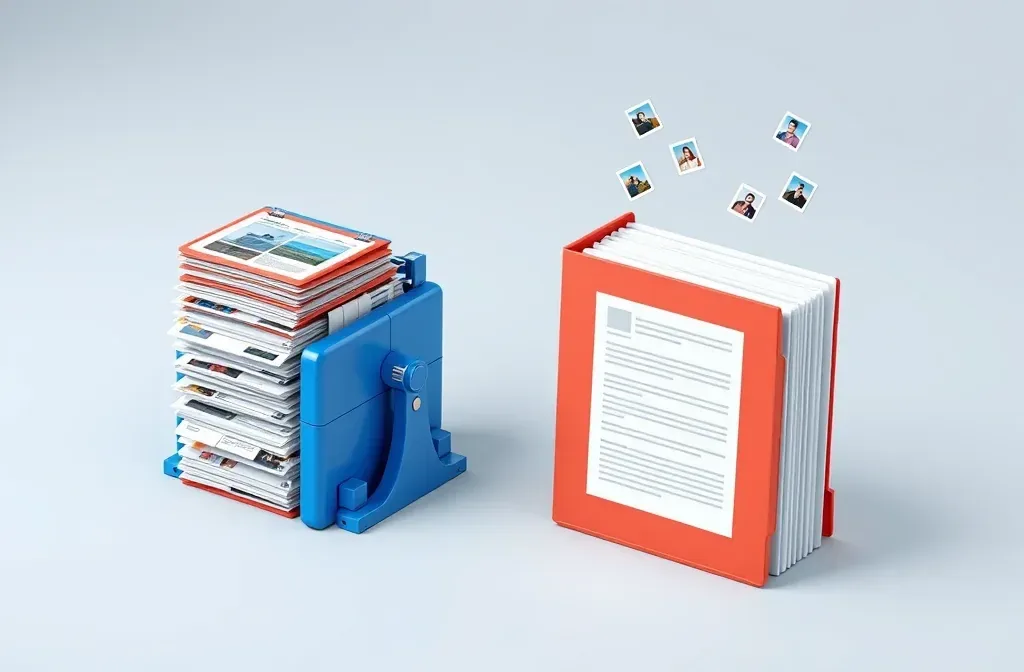
Text takes up very little room in a PDF. Fifty pages of plain text are usually a few hundred kilobytes. When a PDF runs to tens of megabytes, images are nearly always the reason: screenshots, scanned pages, high-resolution logos, or charts pasted in as pictures.
So when you pick a compression level, what you are really choosing is the resolution and quality of the images. The text stays exactly as sharp as it was.
Compress PDF
Drop a PDF here
PDF · up to 100 MB per file
Files are deleted after 2 hours. You can delete them right after downloading.
What the three levels do to your images
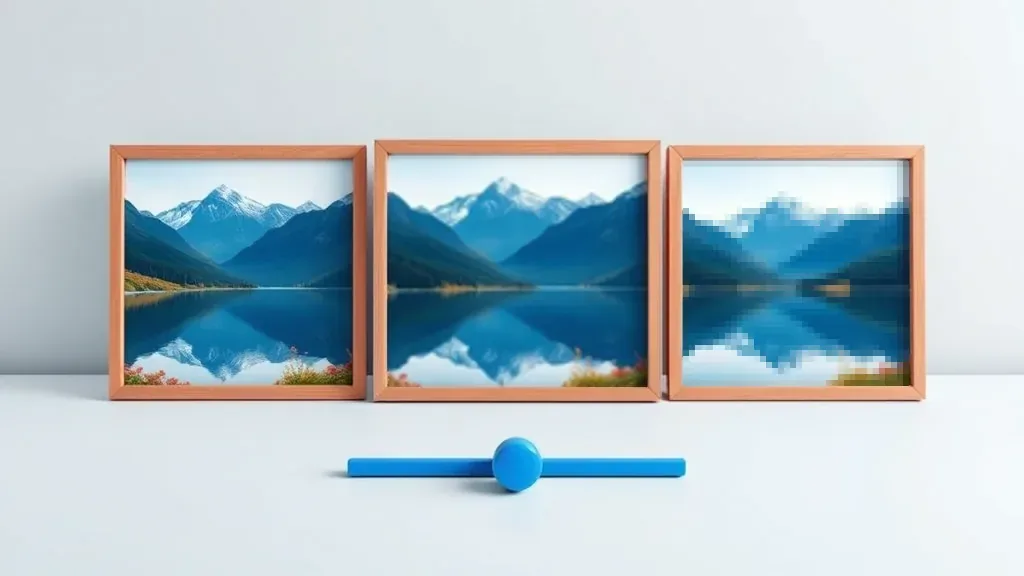
The same photo at three levels: untouched, resampled to about 150 DPI, and resampled to about 72 DPI.
| Level | Images inside | File gets smaller by | Good for |
|---|---|---|---|
| Low | Kept at high resolution; only redundant data and unused fonts are dropped | 10–30 % | Documents going to print |
| Balanced | Resampled to about 150 DPI, still crisp on screen and in A4 print | 50–70 % | Email, online forms and portals |
| Strong | Resampled to about 72 DPI, screen resolution | The most | Reading on a phone, archiving |
If you are not sure, start with Balanced. It is the right choice for most jobs. Move to Strong only if the file is still over the upload limit.
Gmail caps attachments at 25 MB, and many online portals set a much lower limit. Knowing the limit at the other end tells you how hard you need to compress.
When grayscale is worth it
For scanned paperwork such as contracts, invoices and forms, turning on grayscale often halves the size again. The reason is mundane: a scan of a white page still stores three colour channels even though there is nothing but black ink on it.
Leave it off for documents with colour charts, product photos, or stamps and seals whose colour the reader needs to see.
Compression is one-way. Nothing brings back detail that has been thrown out, not even recompressing at a lower level. Keep the original until you are sure the compressed file is good enough.
Check the result before you send it
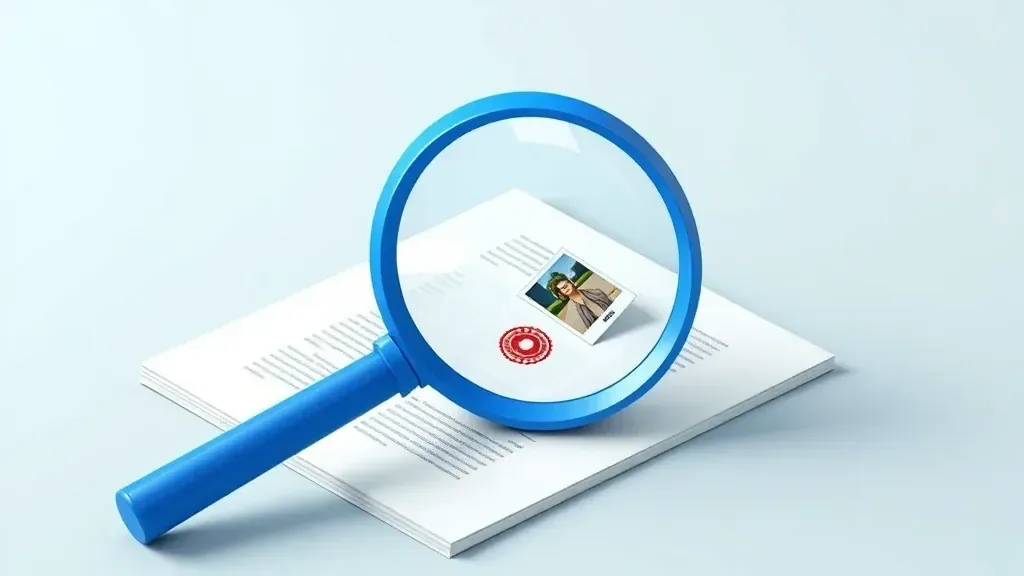
Zoom to 200 % and look at the places that break first.
Open the compressed file at 200 % zoom and look at three things:
Steps
The smallest text in the document
footnotes, page furniture, reference numbers. If that is sharp, the text is fine.
Logos and stamps. They break first, because they have thin outlines and fine detail.
Photographs and charts. Look for soft square blocks, or jagged edges around the labels in a chart.
If all three hold up, the compressed file is fine to send. If a stamp has smudged, go back to the original and compress one level lower.
Still too big after compressing
- Drop pages you do not need to send, such as appendices or blank pages, then compress.
- Compress the photos before you combine them, if the PDF is built from phone pictures. Lean images make a lean PDF.
- Send two files instead of forcing one file under the limit.
If you need to combine several files before sending, see how to merge PDFs in the right order.
Frequently asked questions
I compressed it and almost nothing happened.
The file was already compressed, or it is all text. There is nothing left to remove.
Does compressing break a digital signature?
Yes. Any change to a PDF invalidates its signature, because the signature vouches for the exact bytes that were signed. Compress first, then sign.
Does compressing twice make it smaller still?
Barely, and each pass costs quality. One pass at the right level is the whole job.
Are my files kept on the server?
They are deleted after 2 hours, and you can delete them yourself as soon as you have the result.
Try it on your own file
Free, no sign-up. Files are deleted after 2 hours.