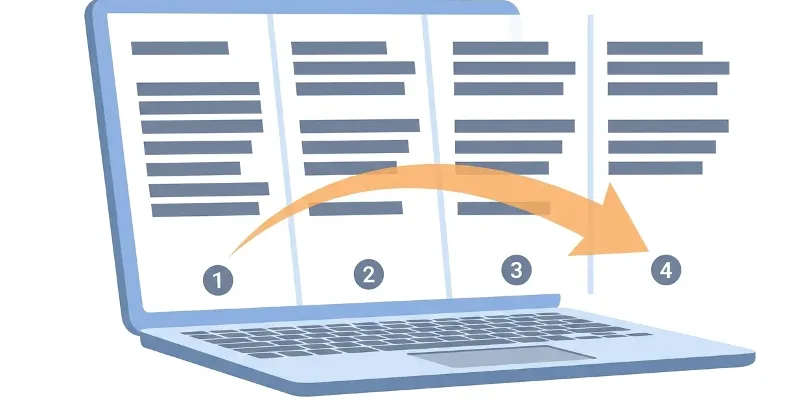
A video's file size is simple arithmetic: bitrate multiplied by duration. A one-minute clip at 8 Mbps weighs about 60 MB, because 8 Mbps × 60 seconds ÷ 8 = 60 MB. To make the file smaller you have three options: lower the bitrate, lower the resolution so a low bitrate still looks fine, or make the video shorter.
Compress video
Drop a video here
MP4, MOV, MKV, WEBM, AVI, M4V… · up to 100 MB per file
Files are deleted after 2 hours. You can delete them right after downloading.
Two dials: quality and resolution
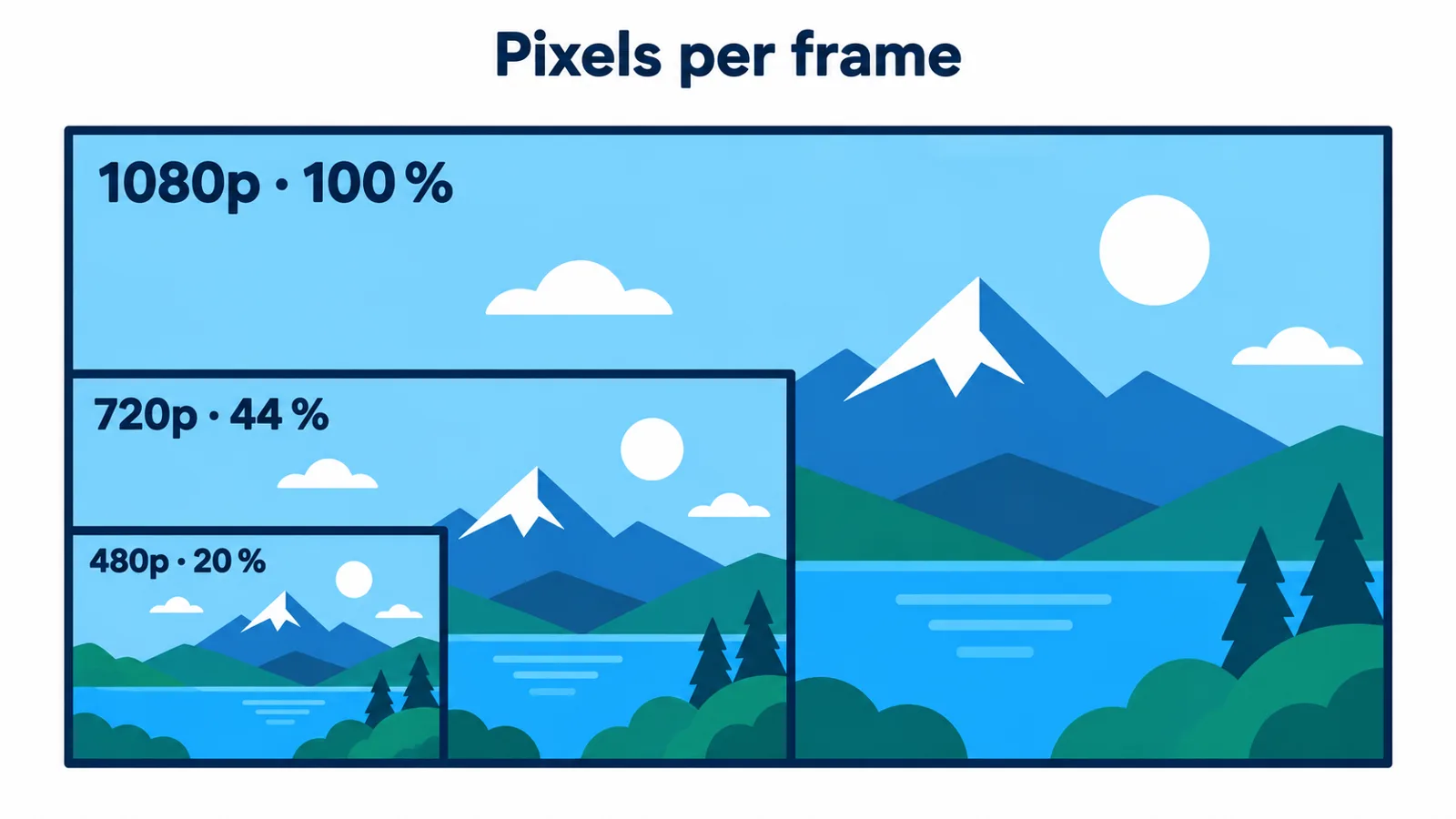
Going from 1080p to 720p drops more than half the pixels in every frame.
| Setting | What it does | When to use it |
|---|---|---|
| High | A moderate saving, barely visible | Videos that must look their best or will be edited further |
| Balanced (default) | A big saving, still sharp on a phone | Chat apps, email, archiving |
| Smallest | The biggest saving, a softer picture | Very tight size limits |
| Max resolution 720p or 480p | Fewer pixels in every frame | When the quality level alone is not enough |
Resolution is the strongest dial. A 720p frame has only 44 % of the pixels of 1080p, and 480p about 20 %. On a phone screen 720p still looks sharp, so it is usually the first step when a file is still too heavy.
Match it to where the video is going
| Destination | Suggestion |
|---|---|
| Gmail caps attachments at 25 MB. For a short clip use Balanced with 720p; for longer videos, send a Google Drive link | |
| Chat apps | Balanced is enough; add 720p if it is still over the limit |
| Social media, YouTube | Upload the best quality you have and compress only if you exceed the upload limit |
| Long-term storage | High, and keep the original somewhere else |
Social networks always recompress what you upload. If you compressed heavily beforehand, the video is compressed twice and loses detail twice. For videos you are going to post, compress just enough to get under the upload limit.
Still too big
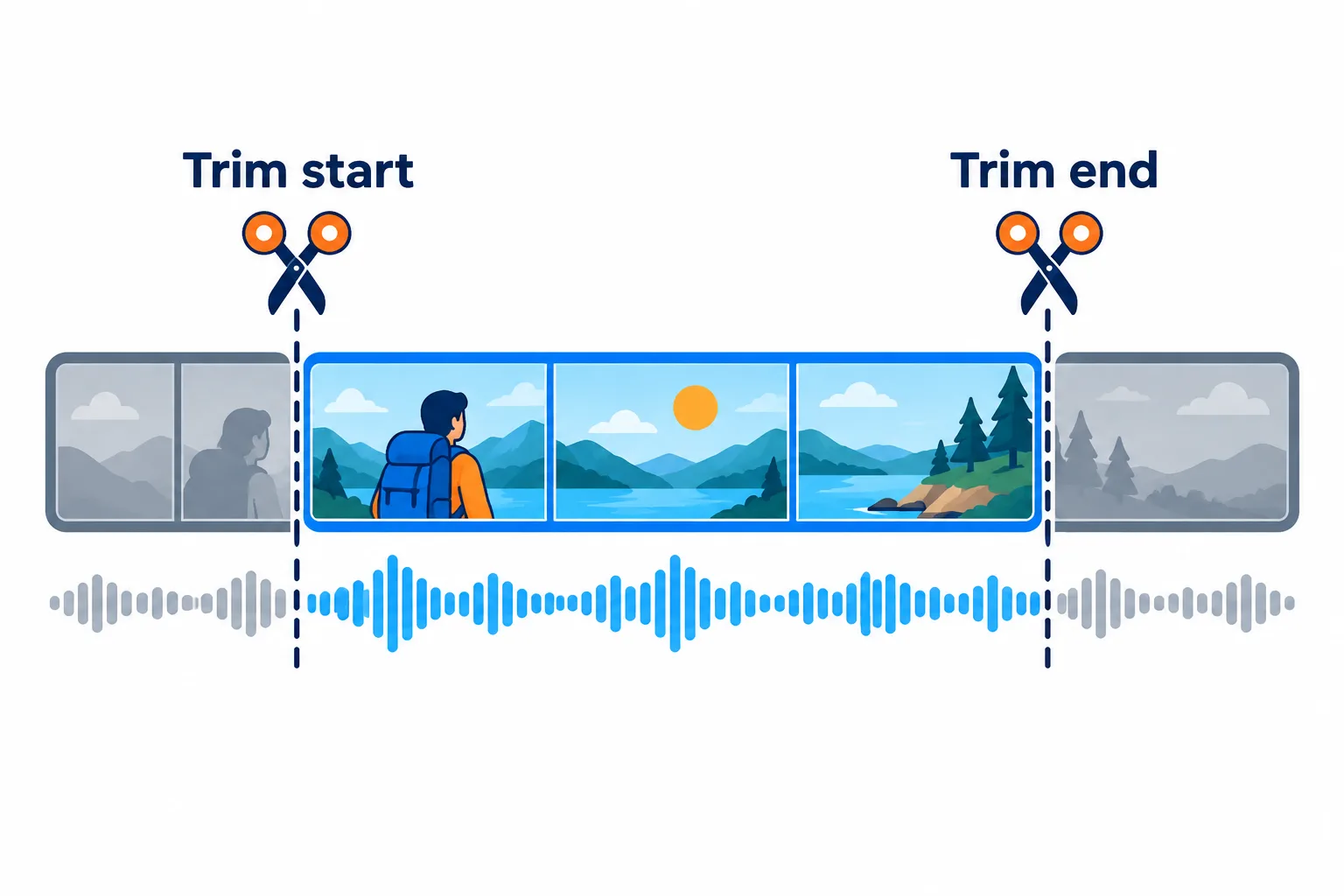
Trimming the dead time is the surest way to cut the size.
Steps
**Cut the dead time** at the start and end with Trim video. Removing 30 % of the running time removes about 30 % of the size.
**Lower the resolution** to 720p, then 480p if needed.
**Switch to Smallest** as the last step.
**Split it into parts** if it is still over a limit, including the tool's own 100 MB per upload.
Frequently asked questions
Will compression remove the sound?
No. The audio is kept and encoded as AAC in the MP4 file.
Why did a video downloaded from social media barely shrink?
It was already heavily compressed, so there is little left to squeeze. Try Smallest or a lower resolution.
Does compressing twice make it smaller still?
A little, perhaps, but each pass loses more detail. One pass from the original at the right level is best.
Are my files kept on the server?
They are deleted after 2 hours, and you can delete them yourself as soon as you have the result.
Try it on your own file
Free, no sign-up. Files are deleted after 2 hours.