Quick answer: use a qr code generator for links, Wi‑Fi or payments
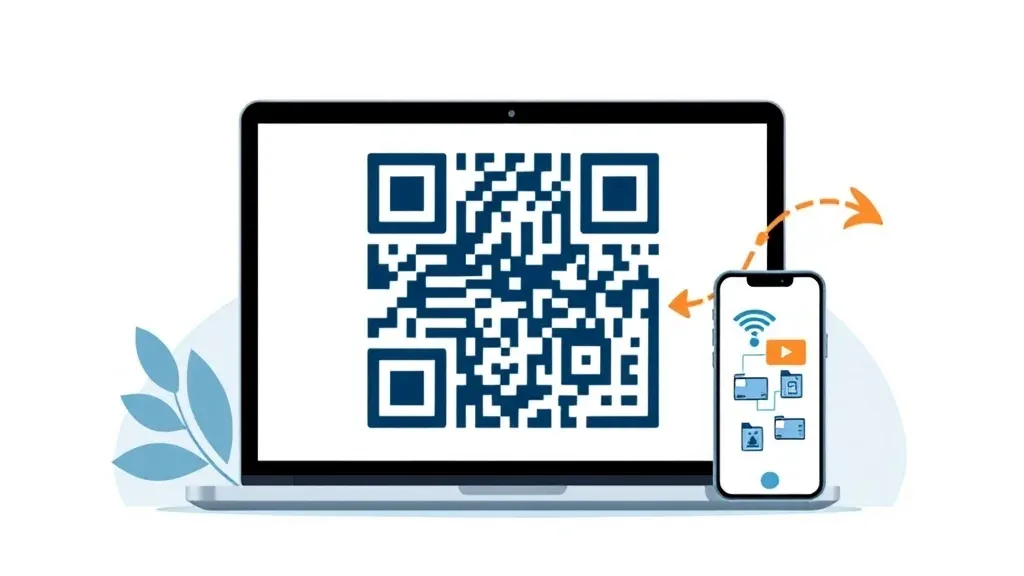
A qr code generator turns the information you enter into a scannable square code. If you want a quick, practical way to make one, decide what the code should open, type the details, generate the code, download it, and test it with your phone before sharing or printing it.
With BigQTools, you can use the QR Code Generator to create a static QR code for a link, a Wi‑Fi network or payment details, then download it as PNG or SVG.
QR Code Generator
Your QR code

Fill in the fields and your QR code appears here.
Style
Higher levels survive smudges and logos but make a denser code.
The image stays on your device. The logo takes at most 22% of the width; the code uses level H.
Everything runs in your browser: nothing you type or choose is uploaded.
What a QR code generator is best for
A QR code is useful when you want someone to get from the physical world to a digital action without typing. Instead of asking people to enter a long URL, search for a page, or copy Wi‑Fi details, you give them a code they can scan.
Common uses include:
- Sending people to a website, menu, form, map, profile or file page
- Sharing guest Wi‑Fi details in a home, office, cafe or event space
- Adding payment details where a QR payment workflow is expected
- Placing a quick action on posters, flyers, product packaging or handouts
- Making a digital link easier to open during a presentation or class
The main thing to remember is that the QR code is only as useful as the destination behind it. A clear landing page, short instructions, and a tested code matter more than decoration.
Static QR codes: what you should know first
The QR Code Generator creates a static QR code. That means the information is built into the code itself. When someone scans it, the scanner reads the data directly from the pattern.
This is simple and reliable, but it also means you should check everything carefully before you publish it. If you create a QR code for the wrong link or incorrect Wi‑Fi details, the printed code will still contain that wrong information. You would need to make a new code and replace the old one.
Static QR codes work well when the destination is not expected to change often. For example, a company homepage, a stable booking page, a permanent contact page, or a guest Wi‑Fi network can all be good fits.
Before generating the code, ask yourself:
- Is the link final and spelled correctly?
- Does the page work on mobile?
- Will people who scan the code have permission to open the page?
- Are the Wi‑Fi network name and password current?
- Are the payment details correct?
A minute of checking now can prevent a lot of confusion later.
How to create a QR code step by step
The process is straightforward, but doing it in the right order helps you avoid mistakes.
1. Choose what the QR code should do
Start with the action you want from the scan. Do you want people to open a link, connect to Wi‑Fi, or use payment details? Keep the goal simple. One QR code should usually do one thing.
For a link, copy the exact URL from your browser or app. If possible, open it in a private window or on another device to confirm it works for people who are not logged in.
For Wi‑Fi, check the network name and password exactly. Wi‑Fi names can be case-sensitive, and a small typo can make the code useless.
For payment details, review the information carefully before downloading and sharing the code.
2. Enter the details in the QR Code Generator
Open the QR Code Generator and type the information requested for your chosen QR code type. Keep the data clean. Avoid extra spaces, incomplete links, or copied text that includes hidden formatting.
If you are making a link QR code, use the full link. A complete URL is easier to verify and less likely to be misunderstood by scanners or users.
3. Generate and preview the code
Once the details are entered, generate the QR code. Look at the preview before downloading. You do not need to understand the pattern, but you can still confirm that you selected the right type and entered the right information.
If anything looks wrong, go back and correct it before saving.
4. Download as PNG or SVG
The QR Code Generator lets you download the static QR code as PNG or SVG. Choose the format based on how you plan to use it.
PNG is a practical choice for everyday use, such as inserting the code into a document, slide, email graphic or simple social post.
SVG is useful when you need a scalable graphic, especially for designs that may be resized. Because SVG is vector-based, it is often a better fit for layouts that need clean edges at different sizes.
5. Test before you share
Always test the downloaded QR code. Scan it with your phone from the actual file or design you plan to use. If you are printing it, test a printed sample too.
Check that:
- The scan opens the right destination
- The destination loads on mobile
- The code is large enough to scan comfortably
- The contrast is strong enough
- Nothing important is cropped, stretched or covered
Testing is the step people skip most often, and it is the step that catches the most problems.
Tips for making a QR code that scans reliably
A QR code needs to be readable by a camera. Fancy designs, tight layouts, poor printing, or low contrast can make scanning harder.
Use these practical rules:
- Keep strong contrast between the code and the background
- Leave blank space around the code
- Do not stretch the code unevenly
- Avoid placing it on busy images
- Do not cover the corners or key parts of the pattern
- Print a sample before producing many copies
- Test from the distance people will actually scan it
If your code will be on a poster, test it from a poster-like distance. If it will be on a small card, test it as a small card. A QR code that scans on your laptop screen may not scan well when printed tiny or placed behind glare.
Also think about the user experience after the scan. If the code opens a web page, the page should be mobile-friendly. If it opens a form, the form should be short enough to complete on a phone. The QR code can get people there, but the page still has to do its job.
Where to place your QR code
Placement affects scan rate. Put the code where people naturally pause and have enough time to scan.
Good places include:
- A counter sign near checkout
- A table tent in a restaurant or event space
- A flyer handed directly to someone
- A poster at eye level
- A slide shown long enough for people to scan
- Packaging where there is space and contrast
Avoid placing QR codes where scanning would be awkward or unsafe. For example, a code on a fast-moving screen, a small area at the bottom of a poster, or a surface that bends or reflects light can reduce scans.
Add a short call to action near the code. “Scan to see the menu,” “Scan to join Wi‑Fi,” or “Scan to pay” tells people what will happen. Without that context, some people may ignore the code because they do not know why it is there.
PNG or SVG: which download should you choose?
Both PNG and SVG can be useful. The best choice depends on the final use.
Choose PNG when you want a simple image file that is easy to place in common documents, presentations or image editors. PNG is convenient when the code will stay at a normal size and you do not need to scale it heavily.
Choose SVG when the QR code may be resized in a design. SVG is especially helpful for print layouts or brand materials where sharp edges matter. It gives designers more flexibility because it can scale cleanly.
Whichever format you choose, keep a copy of the final downloaded file. If you use the QR code in several places, use the same tested file so you do not accidentally introduce a different version.
Common mistakes to avoid
Most QR code problems are not caused by the generator. They come from incorrect information, poor placement or skipping the test.
Watch out for these issues:
Using a link that requires a login
If the destination only works for you because you are logged in, other people may see an error or a private page. Test the link on another device or in a browser where you are not signed in.
Printing the code too small
A tiny QR code might work on a screen but fail on paper. Make sure the final printed size matches the scanning situation.
Placing it on a low-contrast background
Light gray on white, dark blue on black, or a busy photo behind the code can make scanning unreliable. Clear contrast is your friend.
Changing the destination after printing
A static QR code cannot update itself if your destination changes. If the link or details are no longer correct, create a new code and replace the old one.
Forgetting the instruction text
People are more likely to scan when they know what they will get. Add a short phrase next to the code so the action is obvious.
Make your QR code now
If you already know what you want the code to open, you can make it in a few steps: enter a link, Wi‑Fi network or payment details, generate the static QR code, then download it as PNG or SVG. Test it once, and it is ready to use in your design, printout or digital material.
Try it on your own file
Free, no sign-up. Files are deleted after 2 hours.
Frequently asked questions
What can I create with the QR Code Generator?
You can type a link, a Wi‑Fi network or payment details and download a static QR code.
Can I download the QR code as an image?
Yes. The QR Code Generator lets you download the code as PNG or SVG.
Is the QR code dynamic or static?
It creates a static QR code, so the entered information is built into the code. Check your details before sharing or printing it.
Should I test my QR code before printing?
Yes. Scan the final file or a printed sample to make sure it opens the right destination and is easy to read.
This guide was drafted with AI assistance and checked against how the BigQTools tool works.