The fastest way to make a photo to anime image
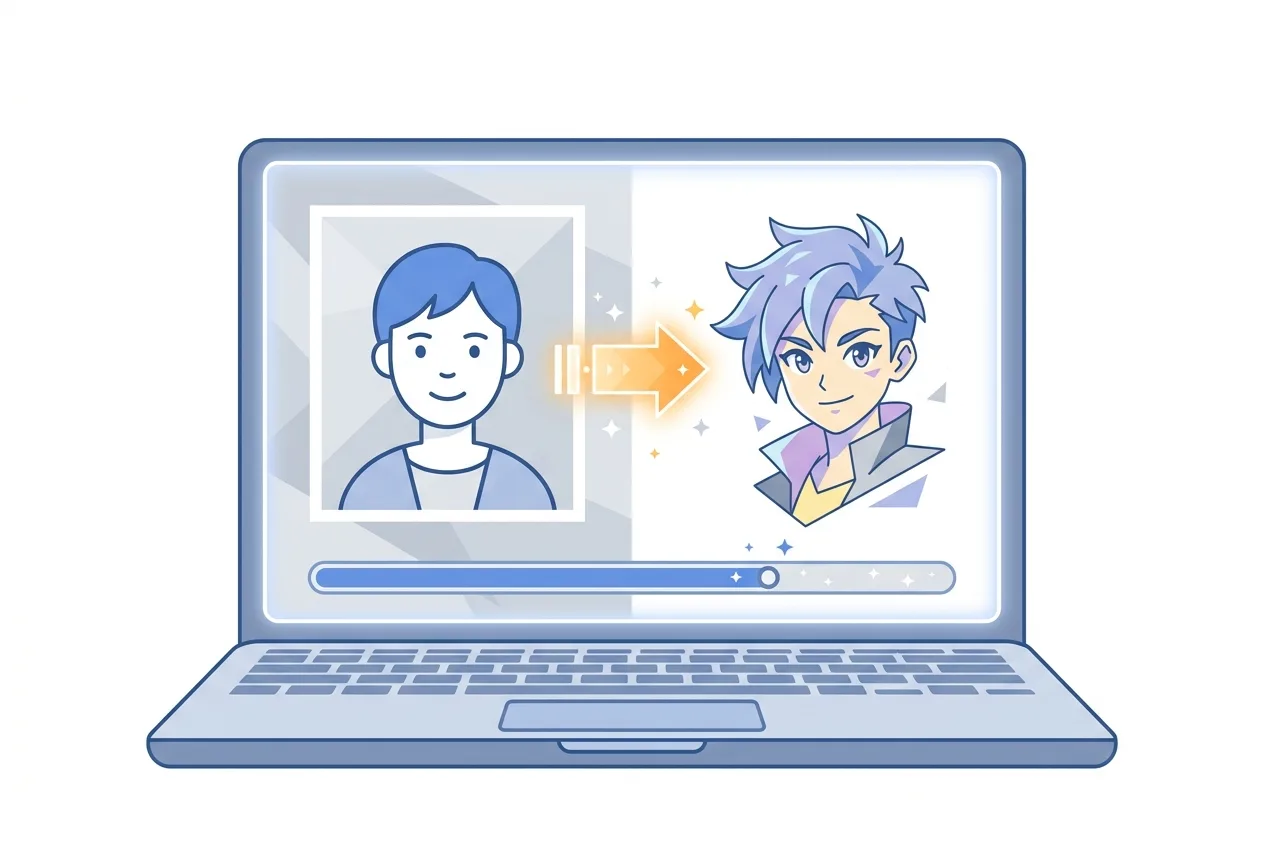
If you searched for photo to anime, you probably want a simple way to turn a selfie, portrait, pet photo, or character reference into an anime-style image. The easiest method is to use an AI image tool that accepts your photo as a starting point, then generates an anime version based on that image and your style instructions.
On BigQTools, the tool to use is Photo to Drawing. It can create line art in seconds, or generate a sketch, watercolour, or anime picture with AI in about 2–5 minutes. You upload one image, describe the anime look you want, and download the result when it is ready.
Photo to Drawing
Drop an image here
JPG, JPEG, PNG, WEBP · up to 100 MB per file
Files are deleted after 2 hours. You can delete them right after downloading.
What makes a good photo to anime result?
AI can transform many kinds of images, but the starting photo matters. A clean photo gives the tool better information about the face, pose, clothing, and background. Before you upload, check these points:
- Use a clear subject. A portrait, half-body photo, pet photo, or single object usually works better than a crowded group shot.
- Avoid heavy blur. If the eyes, face, or outline are hard to see, the anime version may lose detail.
- Use decent lighting. Soft daylight or even indoor light is better than a dark photo with strong shadows.
- Keep the main subject visible. Cropped heads, hidden hands, or covered faces can make the generated image less predictable.
- Pick one idea. If you want an anime avatar, start with a head-and-shoulders photo. If you want a character poster, use a full-body or half-body image.
The tool supports one file per run on the free plan, with a limit of up to 20 MB per file. If your photo is larger than that, reduce the image size first, then try again.
How to turn a photo to anime step by step
Here is a practical workflow you can follow from upload to download.
1. Choose your photo
Start with the best version of the image you have. For portraits, look for a photo where the face is sharp and the expression is natural. For pets, choose a photo where the eyes and body shape are easy to see. For objects or outfits, use an image where the subject is not hidden by clutter.
If you are making a profile picture, a simple selfie with a plain background is often enough. If you are making character art, a photo with a clear pose, outfit, and hair shape gives the AI more to work with.
2. Open Photo to Drawing
Use Photo to Drawing and upload your image. The tool is designed for turning a photo into line art, sketch, watercolour, or anime-style artwork. For this task, choose or describe an anime result.
3. Write a simple anime prompt
A prompt is the short instruction that tells the AI what kind of anime image you want. You do not need a long paragraph. In fact, clear and specific usually works better than vague.
Good prompt examples:
- “Anime portrait, soft lighting, clean line art, pastel colors, gentle smile”
- “90s anime style, dramatic lighting, detailed eyes, city background”
- “Cute anime avatar, simple background, bright colors, friendly expression”
- “Fantasy anime character, detailed outfit, magical atmosphere, soft watercolor look”
- “Anime pet portrait, expressive eyes, warm colors, clean background”
Try to include the subject, mood, art style, and background. If you want the result to stay close to the original photo, say that too: “keep the same pose and hairstyle” or “preserve the original outfit.”
4. Generate and wait
Anime generation with AI may take about 2–5 minutes. During this time, the tool is creating a new image based on your photo and prompt. When it finishes, review the result before downloading.
5. Refine if needed
If the first result is close but not perfect, adjust your prompt and run it again. Small changes can make a big difference. For example:
- If the image is too realistic, add “more anime style” or “clean manga line art.”
- If the face changes too much, add “keep facial features close to the original photo.”
- If the background distracts from the subject, add “plain background” or “simple soft background.”
- If the image feels too dark, add “bright lighting” or “pastel colors.”
Prompt ideas for different anime looks
The phrase “anime style” can mean many things. A bright avatar, a soft romantic portrait, and an action poster all need different instructions. Use these prompt patterns as starting points.
Anime avatar
Use this when you want a social profile image or a clean headshot.
“Anime avatar from this photo, clean line art, bright eyes, soft lighting, simple background, friendly expression.”
Manga-style portrait
Use this when you want a black-and-white or comic-inspired result.
“Manga portrait, black and white, expressive eyes, clean ink lines, light shading, close to the original pose.”
Soft studio anime portrait
Use this for a polished, gentle look.
“Soft anime portrait, warm light, smooth colors, detailed eyes, neat hair, peaceful mood, simple background.”
Fantasy anime character
Use this if your photo has an outfit, pose, or theme you want to exaggerate.
“Fantasy anime character based on this photo, detailed outfit, glowing background, cinematic lighting, elegant pose.”
Cute pet anime style
Use this for a cat, dog, rabbit, or other pet photo.
“Cute anime pet portrait, expressive eyes, soft fur, warm colors, clean background, playful mood.”
Common mistakes and how to avoid them
A photo to anime tool is easy to use, but a few mistakes can lead to odd results.
Using a photo with too many people
If several people appear in the same image, the AI may not know which person should become the main anime character. Use a photo with one clear subject when possible.
Asking for too many styles at once
Prompts like “anime, realistic, watercolor, cyberpunk, pencil sketch, oil painting” can confuse the result. Choose one main style, then add a few details.
Forgetting the background
If you do not mention the background, the AI may invent one. That can be fun, but it may not fit your purpose. Add “plain background,” “city background,” “school background,” or “soft pastel background” if you have a preference.
Expecting an exact copy
AI anime conversion creates a new image inspired by your photo. It may change details such as hair strands, clothing folds, eye shape, or background elements. If you need a closer match, tell the prompt to preserve specific details.
Turn your anime image into a short video
Once you have an anime-style image, you may want to make it move. For that, use Image to Video. It turns one photo and a line about the motion into a 3 or 5 second MP4 clip.
For example, after creating your anime portrait, you could describe motion like:
- “Hair gently moving in the wind, slow camera zoom”
- “Character blinking softly with subtle background movement”
- “Cinematic light sweep, slight head movement”
Keep the motion instruction short and realistic. Small movements usually look better than asking for a full action scene from one still image.
Image to Video
Drop an image here
JPG, JPEG, PNG, WEBP · up to 100 MB per file
Files are deleted after 2 hours. You can delete them right after downloading.
Privacy and practical file tips
Before uploading any personal photo, check that you are comfortable using it for an AI transformation. A selfie, family photo, child photo, or work image may contain details you do not want to share widely. If the image includes other people, make sure you have permission before turning it into stylized artwork.
Also think about where you plan to use the result. An anime avatar for a private profile is different from an image for a public brand, poster, or paid project. If the photo includes logos, uniforms, artwork, or a recognizable location, consider whether you should crop or replace those details.
For smoother uploads, use one clear image and keep it within the tool’s file limit. Photo to Drawing allows up to 20 MB per file and one file per run on the free plan.
Quick checklist before you generate
Use this checklist when you want a better photo to anime result:
- Pick a sharp photo with one main subject.
- Make sure the face, pose, and outfit are visible.
- Choose the anime mood before writing your prompt.
- Use a short prompt with style, lighting, and background.
- Add details you want preserved from the original photo.
- Try a second prompt if the first result is not close enough.
Try it on your own file
Free, no sign-up. Files are deleted after 2 hours.
Frequently asked questions
How do I turn a photo to anime online?
Upload a clear image to Photo to Drawing, choose or describe an anime style, then generate the image. The AI creates a new anime-style picture based on your photo.
What kind of photo works best for anime conversion?
A sharp photo with one clear subject works best. Portraits, pet photos, and simple full-body images usually give better results than dark, blurry, or crowded pictures.
Can I make an anime avatar from a selfie?
Yes. Use a clear selfie, then prompt for an anime avatar with clean line art, bright eyes, soft lighting, and a simple background.
How long does an anime photo transformation take?
In Photo to Drawing, line art can be made in seconds, while AI styles such as sketch, watercolour, or anime picture usually take about 2–5 minutes.
Can I animate the anime image after creating it?
Yes. Use Image to Video to turn one photo and a short motion description into a 3 or 5 second MP4 clip.
This guide was drafted with AI assistance and checked against how the BigQTools tool works.