The fastest way to merge PDF files
If you need to merge PDF files, the job is simple: upload your separate PDFs, arrange them in the order you want, and create one combined PDF. This is useful when you have invoices, chapters, forms, receipts, reports, or scanned pages saved as separate files and you want one clean document to send, archive, or print.
BigQTools has a dedicated Merge PDF tool for this task. Files are uploaded over HTTPS, processed on BigQTools' servers, and deleted automatically. There is no sign-up and no watermark, so you can get in, combine your documents, and move on.
Merge PDF
Drop PDF files here
PDF · up to 100 MB per file · up to 20 files
Files are deleted after 2 hours. You can delete them right after downloading.
When merging PDFs is the right move
A single PDF is usually easier to manage than a folder full of separate files. It keeps pages together, reduces the chance of missing an attachment, and makes sharing simpler.
You might want to combine PDFs when you have:
- Monthly invoices that should be sent as one document
- Several signed forms for one application
- Scanned pages saved as separate PDF files
- Report sections exported from different apps
- Course notes, chapters, or handouts that belong together
- Receipts and supporting documents for reimbursement
The important part is order. A merged PDF should read naturally from the first page to the last. Before you combine anything, think about what the reader should see first: a cover page, a form, an invoice, a summary, or the main document.
How to prepare your files before you merge PDF documents
A little preparation helps avoid rework. You do not need to edit every page, but it is worth checking the basics before uploading.
1. Rename files in the order you want
If your files have names like scan1.pdf, scan2.pdf, and final-final.pdf, it can be easy to mix them up. Rename them clearly before merging, for example:
01-cover.pdf02-application-form.pdf03-id-copy.pdf04-receipts.pdf
Numbering files is especially helpful when you are combining many PDFs. Even if you can reorder them in the tool, clear names make mistakes easier to spot.
2. Open each PDF once
Before merging, open each file quickly and check that it is the correct document. Look for common issues such as:
- A blank scan
- A duplicate file
- A page saved upside down
- An old version of a form
- A file that belongs to a different project
Catching these before you combine files is faster than fixing the final PDF later.
3. Keep the final reader in mind
Merging PDFs is not only a file task. It is also a reading task. Ask yourself: if someone opens the final PDF, will the order make sense without extra explanation?
For example, a reimbursement PDF might work best as:
- Summary sheet
- Approval form
- Receipts
- Supporting emails or confirmations
A project report might work best as:
- Cover page
- Main report
- Charts
- Appendix
The better the order, the more professional the final document feels.
Step-by-step: merge PDF files with BigQTools
The Merge PDF tool is built for turning separate invoices, chapters, or forms into one tidy PDF in the order you choose. Here is the practical workflow.
Step 1: Upload your PDFs
Open the Merge PDF tool and add the PDF files you want to combine. On the free plan, you can process up to 20 files per run, with up to 100 MB per file. Paid plans support up to 10240 MB per file.
If you have more than 20 files on the free plan, split the work into batches. For example, merge the first group, then merge that result with the next group in a second run.
Step 2: Arrange the files
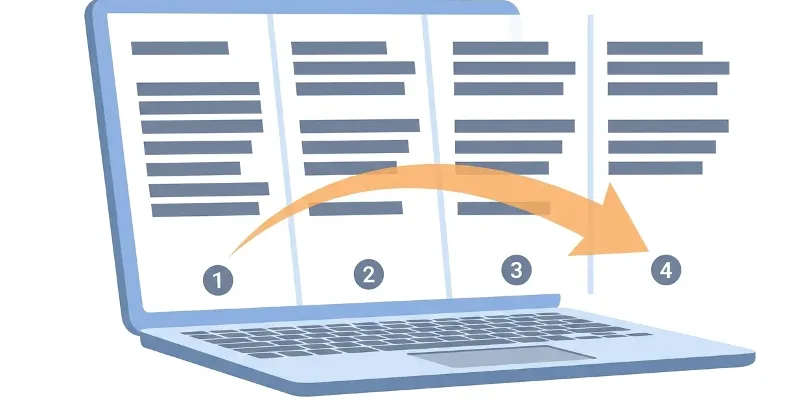
Put the PDFs in the exact order you want them to appear in the final document. This is the most important step. If the first file contains three pages, those three pages will come before the pages in the next file.
A good habit is to read the file list from top to bottom as if it were the final PDF. If the sequence sounds right, you are ready to continue.
Step 3: Merge the PDFs
Run the merge. The tool combines your separate files into one PDF. This saves you from manually copying pages into another app or exporting multiple times from different programs.
Step 4: Download and check the result
After the merged PDF is ready, download it and open it. Scroll through the first few pages, the transitions between documents, and the last page. Make sure nothing is missing and the order is correct.
This final check is quick, but it prevents the most common mistake: sending a PDF that has the right files in the wrong order.
Tips for a cleaner merged PDF
A merged PDF does not have to be fancy. It just needs to be complete, readable, and easy to follow.
Put the most important page first
If the document needs context, start with a cover page, summary, or main form. If it is a collection of receipts, start with the claim form or expense summary. The first page should tell the reader what the document is.
Avoid unnecessary duplicates
When people collect files from email, cloud folders, and scans, duplicates often sneak in. Look for repeated invoices, repeated forms, or older versions. Removing duplicates before merging keeps the final PDF shorter and clearer.
Keep related pages together
Do not separate a form from its supporting pages unless there is a reason. If a signed page, ID copy, or receipt supports a specific document, place it right after that document. This makes review easier.
Use clear file names for future reference
After downloading the combined PDF, save it with a name that will still make sense later. For example:
tax-documents-2025.pdfclient-contract-signed-complete.pdfmarch-invoices-combined.pdf
A clear name helps you find the file again and reduces confusion if you send it to someone else.
Common mistakes when you merge PDF files
Most merging problems are not technical. They come from file selection, order, or version control. Here are a few to watch for.
Merging the wrong version
If you have files called contract.pdf, contract-new.pdf, and contract-final.pdf, pause before uploading. Open the file and confirm it is the one you actually want.
Forgetting a supporting document
A merged PDF often needs an extra page: a receipt, a signed page, a checklist, or an attachment. Make a quick list before you start so you know everything is included.
Putting pages in a confusing order
The final PDF should not make the reader jump around. If the pages tell a story, keep that story in order. If the pages support a decision, put the decision form first and the evidence after it.
Not checking the download
Always open the finished PDF once. It takes less than a minute and can save you from resending a corrected file.
What to do if your PDF set is large
If your files are large, start by checking how many files you are merging and how big each file is. The Merge PDF tool supports up to 100 MB per file on the free plan and up to 20 files per run on the free plan. Paid plans support up to 10240 MB per file.
For a large set, consider merging in a logical order:
- Group files by section, month, chapter, or topic
- Merge each group first if needed
- Then merge the grouped PDFs into one final document
This approach also makes it easier to review the final result. Instead of checking a long list of unrelated files, you can confirm each section is complete.
Merge PDF files now
When your files are ready, use Merge PDF to combine them into one document in the order you choose. It is a practical way to turn scattered PDFs into a single file that is easier to send, store, print, or review.
Try it on your own file
Free, no sign-up. Files are deleted after 2 hours.
Frequently asked questions
How do I merge PDF files online?
Upload your PDFs to the Merge PDF tool, arrange them in the order you want, run the merge, then download the combined PDF.
Can I choose the order of the PDFs before merging?
Yes. Merge PDF is designed to combine separate invoices, chapters, or forms into one tidy PDF in the order you choose.
How many files can I merge on the free plan?
On the free plan, you can merge up to 20 files per run, with up to 100 MB per file.
Do I need to sign up to merge PDFs?
No. BigQTools does not require sign-up for this task, and the output has no watermark.
Are my uploaded PDF files deleted?
Files are uploaded over HTTPS, processed on BigQTools' servers, and deleted automatically.
This guide was drafted with AI assistance and checked against how the BigQTools tool works.