AI art generation is the process of turning a written description into an image. If you want to make AI generated art quickly, start with a clear prompt: subject, style, mood, colors, lighting, and composition. With BigQTools’ AI Art Generator, you describe the picture you want and AI draws it in about 20 seconds. This guide shows you how to plan a prompt, improve weak results, and use an AI art maker without getting stuck on blank-page thinking.
What AI art generation is good for
AI art generation works best when you need a visual idea fast. You can use it to explore concepts, make social post graphics, create fantasy scenes, draft character ideas, test color palettes, or build inspiration for a design project.
It is especially useful when you know what you want to see but do not want to draw it from scratch. Instead of searching through stock images, you can describe a scene and let an AI art creator turn that text into a new image.
Good uses include:
- A book cover concept before hiring a designer
- A mood board image for a room, brand, or story
- A playful avatar or character portrait
- A background image for a presentation
- A visual reference for a product idea
- A piece of free AI art for brainstorming
The main skill is not technical. It is learning how to describe the image in a way the generator can follow.
Try AI art generation with a simple prompt
You do not need a long prompt to begin. Start with one complete sentence that says what the image should show. Then add details only where they help.
A simple formula is:
Subject + action or setting + style + mood + key details
For example:
- “A small cabin in a snowy forest, warm lights in the windows, cozy watercolor style.”
- “A futuristic city at sunset, flying cars, cinematic lighting, realistic digital art.”
- “A friendly robot reading a book in a library, soft colors, children’s illustration style.”
When you are ready, use the AI Art Generator and enter your description.
AI Art Generator
Write in English or your own language. The more specific about subject, setting and light, the closer the image.
1024 × 1024 px
Advanced
0 means random. The same description with the same seed gives almost the same image.
Files are deleted after 2 hours. You can delete them right after downloading. Generated images are labelled “Made by AI”.
After the image appears, do not judge only whether it is “good” or “bad.” Ask what is missing. Is the subject wrong? Is the style too realistic? Are the colors off? Your next prompt should fix one or two things, not everything at once.
How to write better prompts for ai generated art
A strong prompt gives the AI enough direction without becoming a messy list. The best prompts are specific, visual, and easy to read.
Start with the main subject
Put the most important thing first. If the image is about a person, animal, object, room, or landscape, say that clearly at the beginning.
Weak prompt:
“Cool fantasy picture.”
Better prompt:
“A young wizard standing on a stone bridge above a glowing river, fantasy illustration.”
The second version tells the AI what to build around.
Add a setting
The setting gives context and helps the image feel complete. A portrait in a plain studio will look different from a portrait in a rainy neon street.
Useful setting details include:
- Indoor or outdoor
- Time of day
- Weather
- Background objects
- Historical or futuristic period
- Natural, urban, or abstract environment
Example:
“A red fox sitting under a streetlamp on a quiet winter night, snow falling, storybook style.”
Choose a style
Style is one of the most powerful parts of an AI art prompt. If you leave it out, the result may feel generic.
Try style words like:
- Photorealistic
- Watercolor
- Pencil sketch
- 3D render
- Pixel art
- Minimalist poster
- Cinematic concept art
- Children’s book illustration
- Vintage travel poster
You can also describe the texture or medium: ink, oil paint, paper cutout, clay, charcoal, stained glass, or digital painting.
Control the mood
Mood helps the AI choose light, color, and expression. “A forest” is broad. “A peaceful misty forest at sunrise” is much clearer.
Mood words that often help:
- Calm
- Mysterious
- Joyful
- Dramatic
- Cozy
- Dreamlike
- Dark
- Playful
- Elegant
A useful prompt might be:
“A quiet coffee shop on a rainy evening, warm lights, cozy mood, detailed digital painting.”
Prompt examples you can adapt
If you are new to AI art generators, examples make the process easier. Copy the structure, then replace the subject and style with your own idea.
For portraits
“Portrait of an elderly sailor with kind eyes, weathered face, navy coat, soft window light, realistic painting style.”
To change it, swap “elderly sailor” for “space explorer,” “jazz singer,” or “botanical scientist.”
For fantasy scenes
“A hidden garden inside an ancient castle, glowing blue flowers, moonlight, magical atmosphere, highly detailed fantasy art.”
To refine it, add a character, animal, path, fountain, or specific color palette.
For product ideas
“A modern reusable water bottle on a clean kitchen counter, matte green finish, soft natural light, minimal advertising style.”
This kind of prompt can help you explore visual direction before creating a final design.
For social media images
“A cheerful flat illustration of a person planning goals at a desk, plants and notebook nearby, bright colors, clean modern style.”
This works well when you need a friendly image that supports a topic rather than a complex artwork.
For an ai art gallery concept
“Curated wall of small surreal landscape paintings in a bright white gallery, visitors looking closely, elegant museum lighting.”
This can help you imagine how a themed ai art gallery might look before you choose individual images.
How to fix common AI art problems
Your first result may not match your idea. That is normal. Treat AI created art like a draft.
If the image is too vague
Add concrete nouns. Instead of “beautiful nature,” describe the scene:
“A narrow mountain trail through purple wildflowers, snow peaks in the distance, golden sunrise.”
If the style is wrong
Move the style closer to the beginning or make it more specific:
“Watercolor illustration of a seaside village, loose brush texture, pale blue and coral color palette.”
If the image feels too busy
Ask for a simpler composition:
“Minimal poster of a single white sailboat on a deep blue sea, lots of empty space, clean design.”
If the mood is off
Use stronger mood and lighting words:
“Dramatic stormy sky, high contrast lighting, serious mood.”
Or:
“Soft morning light, pastel colors, peaceful atmosphere.”
If the subject is not clear
Put the subject first and avoid competing ideas. A prompt with five main subjects can confuse the result. Choose one focus, then add supporting details.
A simple workflow for better free AI art
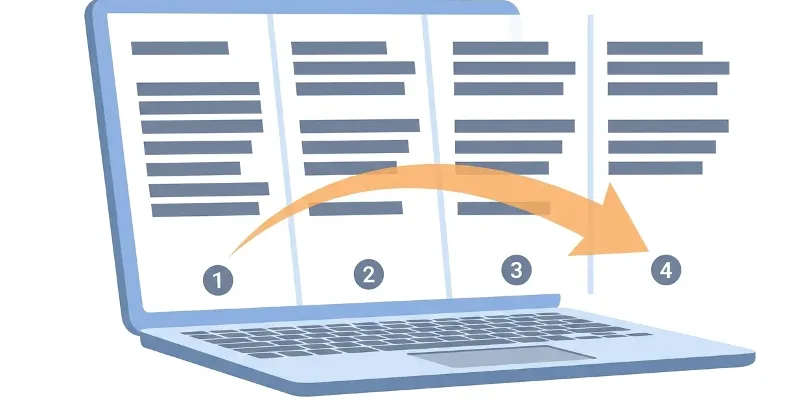
A practical workflow keeps you from rewriting everything randomly. Use this four-step process.
1. Write the plain idea
Start with a direct sentence:
“A cat astronaut floating in space.”
2. Add visual direction
Now add style, mood, and setting:
“A cat astronaut floating outside a space station, Earth in the background, playful 3D illustration, bright colors.”
3. Generate and review
Look for the big issues first:
- Is the subject correct?
- Is the scene readable?
- Does the style match your goal?
- Are the colors and mood close?
Do not worry about tiny details until the overall direction is right.
4. Revise one part at a time
Change only what needs changing:
- “Make it more realistic.”
- “Use a darker cinematic mood.”
- “Show the cat inside the spaceship cockpit.”
- “Make the background simpler.”
This is how you move from a rough AI art free experiment to a stronger final image.
Tips for choosing the right style
If you are unsure what style to use, think about where the image will appear.
For a professional presentation, try clean, minimal, realistic, or editorial styles. For a children’s project, use soft illustration, rounded shapes, and bright colors. For a music cover or poster, cinematic, surreal, high contrast, or retro styles may work better.
You can also guide the image by describing the camera or composition:
- “Close-up portrait”
- “Wide landscape view”
- “Centered composition”
- “Top-down view”
- “Low-angle view”
- “Symmetrical layout”
These phrases help the AI art maker understand not just what to draw, but how to frame it.
Make your next image with AI Art Generator
The easiest way to learn is to make a few images and compare the prompts. Start with a simple idea, generate it, then improve the prompt based on what you see. In a few rounds, you will understand which words have the biggest effect on your results.
Use the AI Art Generator when you want to turn a text idea into an image quickly. Describe the picture you want, then let AI draw it in about 20 seconds.
Try it on your own file
Free, no sign-up. Files are deleted after 2 hours.
FAQ about AI art generation
Frequently asked questions
What is ai art generation?
AI art generation is the process of creating an image from a text description. You write what you want to see, and an AI art creator generates a picture from that prompt.
How do I get better ai generated art?
Start with a clear subject, then add setting, style, mood, lighting, and a few key details. If the result is not right, revise one part of the prompt at a time.
Can I use an AI art maker if I cannot draw?
Yes. The main skill is describing the image clearly. You do not need drawing experience to create concepts, illustrations, or visual ideas.
What should I write in my first prompt?
Use a simple structure: subject, setting, style, mood, and details. For example, “A cozy cabin in a snowy forest, warm lights, watercolor illustration.”
How fast does BigQTools’ AI Art Generator work?
With AI Art Generator, you describe the picture you want and AI draws it in about 20 seconds.
This guide was drafted with AI assistance and checked against how the BigQTools tool works.